Via the “Documents” tab:
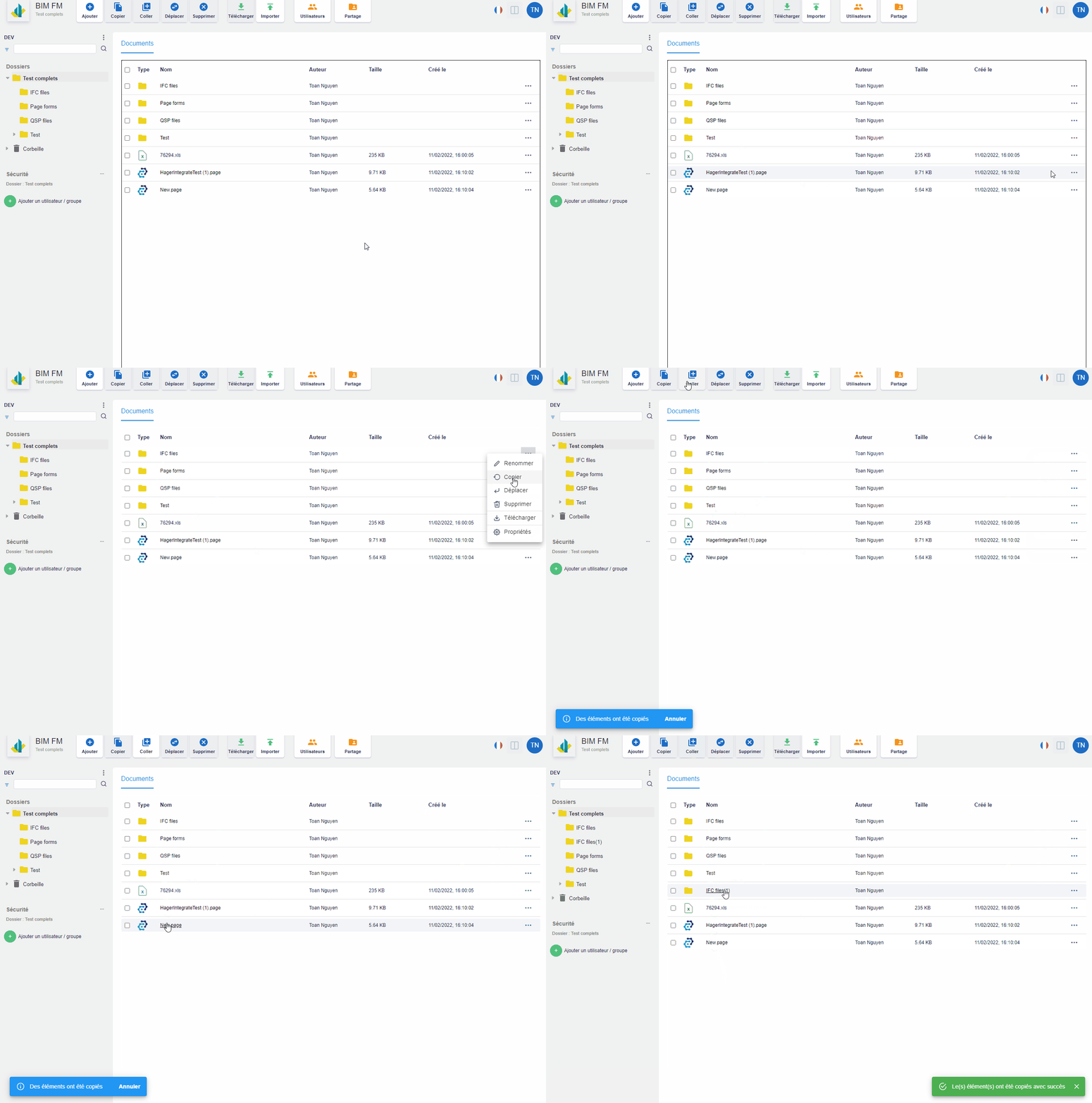
- Select the folder you want to copy,
- Click on the “…” icon at the end of the line and a menu of actions will appear,
- Click on the “Copy” action,
- Click on the “…” icon of a folder to paste it into the folder or via the “Paste” button on the toolbar
Via the toolbar:
- Select the folder(s) you want to copy,
- Click on the “Copy” action on the toolbar,
- Select a destination directory,
- Click on the “Paste” action
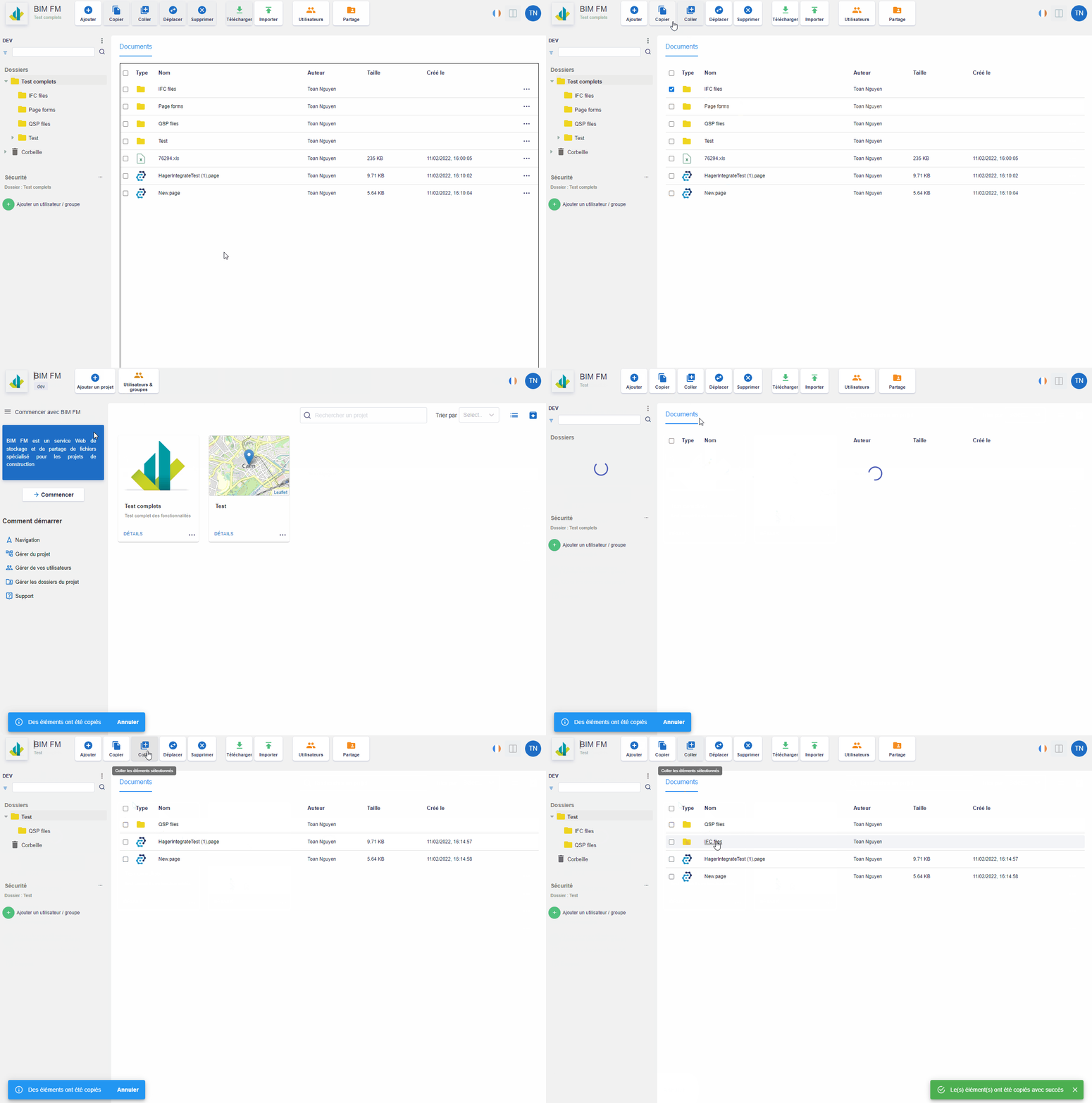
It is quite possible to copy one or more elements from one project to another