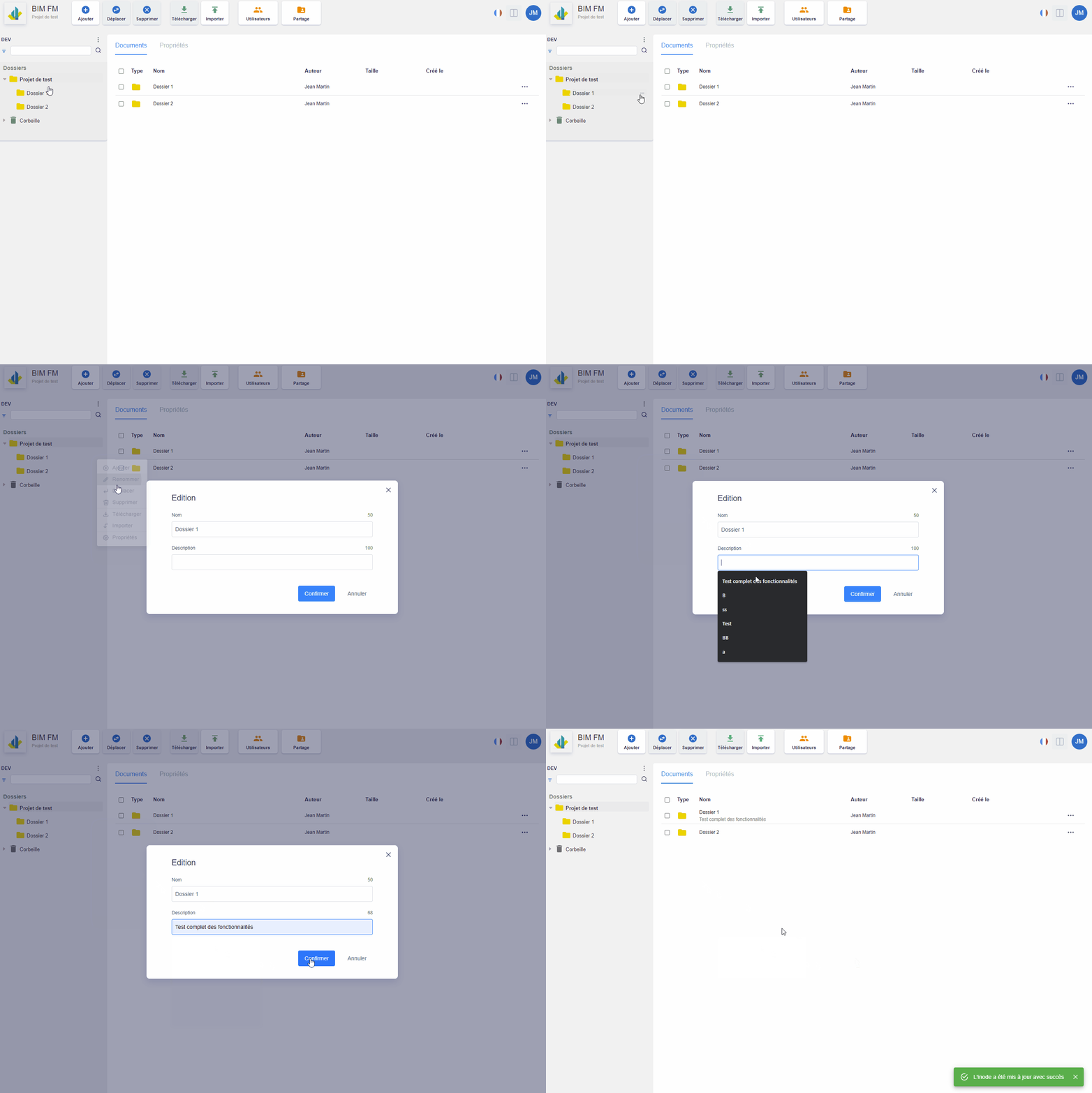
Via the action menu of a folder in the folder tree
- Hover your mouse over the folder, a “…” icon will appear at the end of the line,
- Click on the “…” icon and a menu of actions will appear,
- Click on the “Rename” action,
- A modal window opens and rename your folder (name and/or description),
- Click on the “Confirm” button
Note: You cannot rename the root folder (matching your project name)
Via the “Documents” tab:
- Select the parent folder of the folder you want to rename,
- The documents of the selected folder are displayed in the “Documents” tab (central part),
- Click on the “…” icon at the end of the line and a menu of actions will appear,
- Click on the “Rename” action,
- A modal window opens and rename your folder (name and/or description),
- Click on the “Confirm” button

Note: This action is also possible on files