Via the “Documents” tab
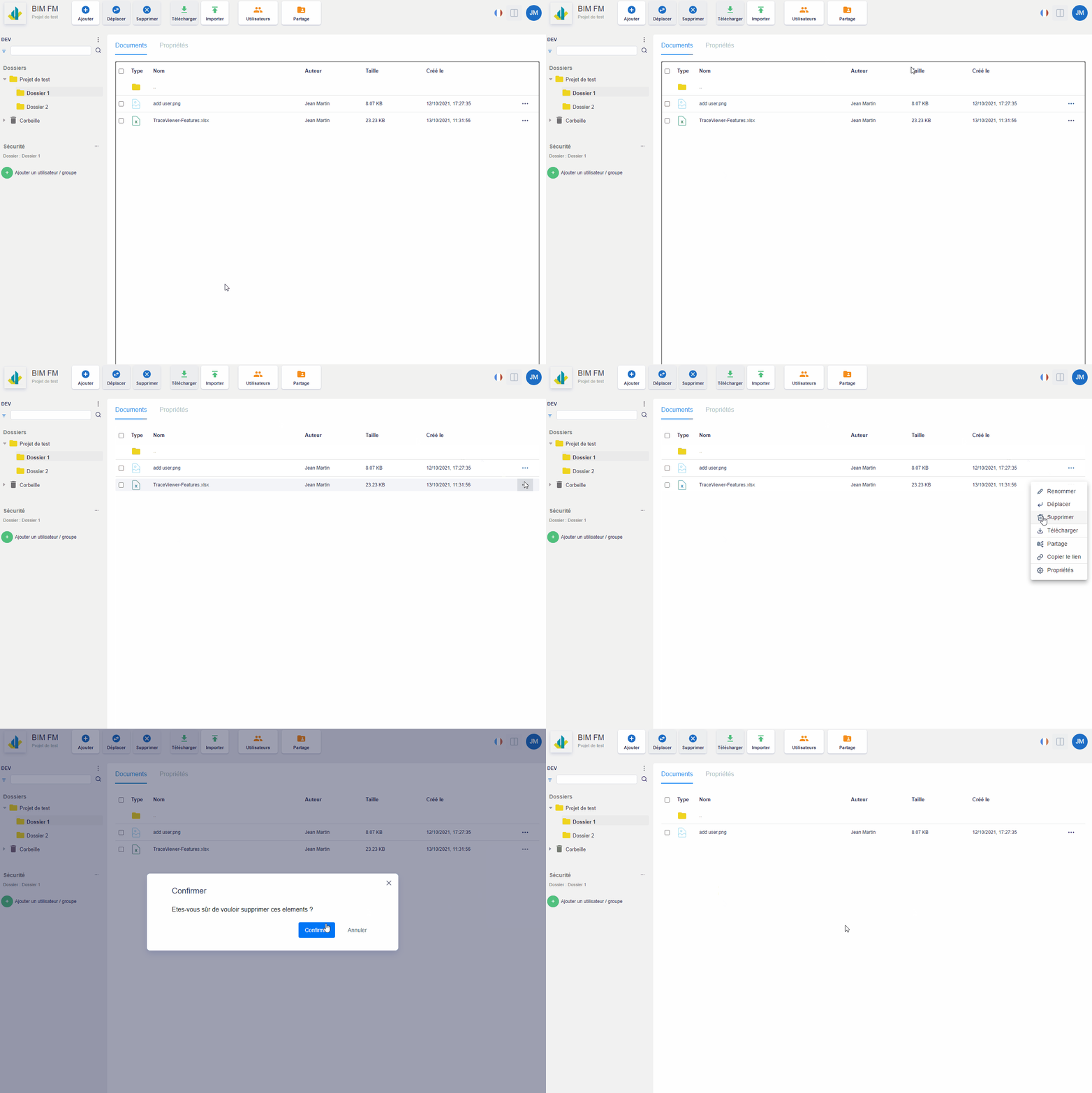
- Select the folder containing the file you want to delete,
- The documents of the selected folder are displayed in the “Documents” tab (central part),
- Click on the “…” icon at the end of the line and an action menu will appear,
- Click on the “Delete” action,
- A deletion confirmation window will appear,
- Click on the “Confirm” button
Note: This action is also possible on a folder
Via the “Delete” button in the toolbar
- Select the folder containing the file you want to delete,
- The documents of the selected folder are displayed in the “Documents” tab (central part),
- Check the file(s) you want to delete,
- Click on the “Delete” button,
- A deletion confirmation window will appear,
- Click on the “Confirm” button
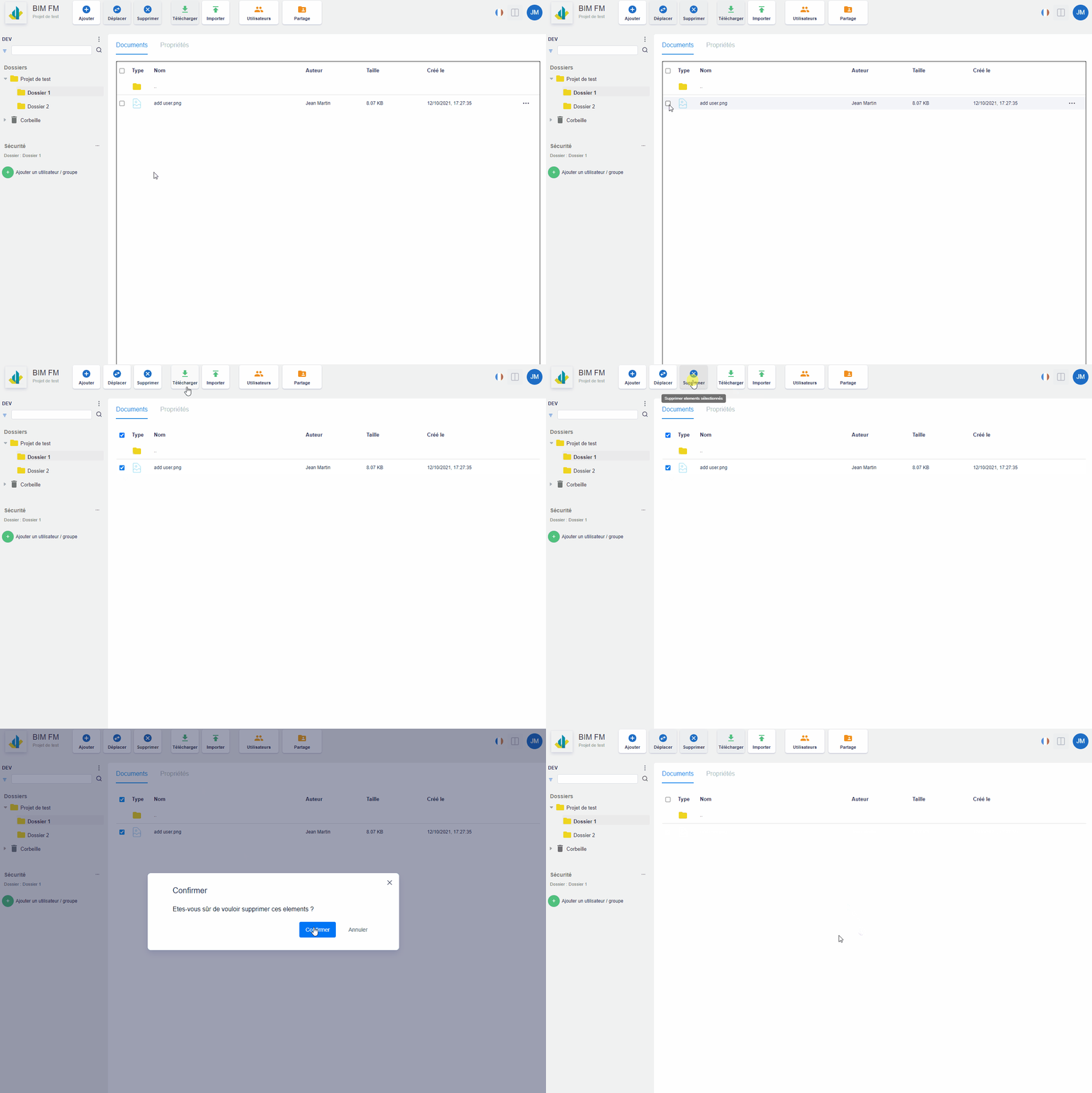
Note: This possibility is used for batch deletion of documents (middle part). The “Delete” button is grayed out only if at least one document is checked in the list of documents .
This action is also possible on folders .
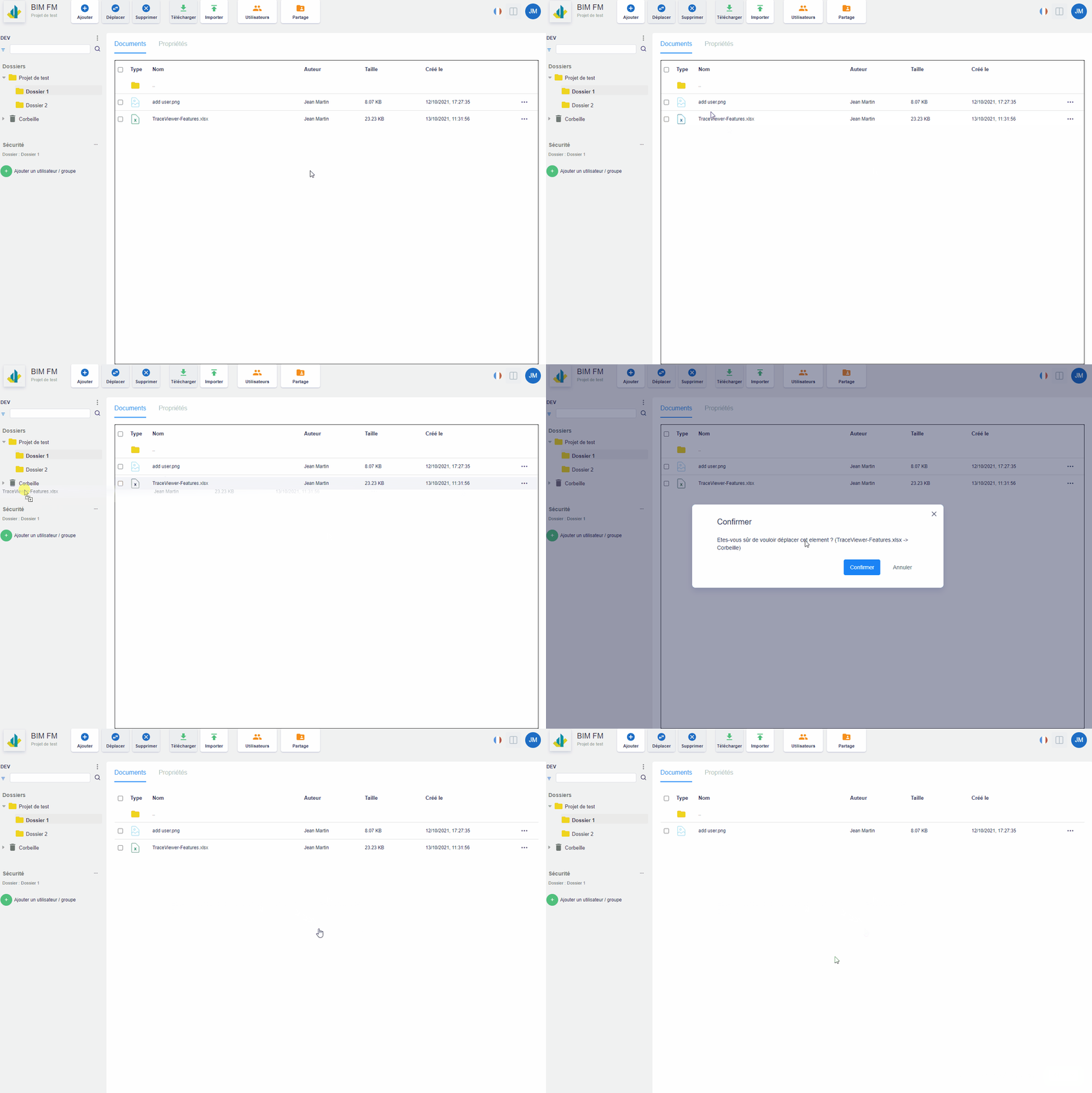
Drag/drop folder to trash
- Click and hold the file to delete,
- Release the click on the “Trash” folder,
- A modal window opens and confirm the deletion