This feature prevents multiple users from editing the same file at the same time. User must check out or lock a file before updating it
To lock a file:
- Click on the action menu of a document “…”,
- Click on the “Properties” action
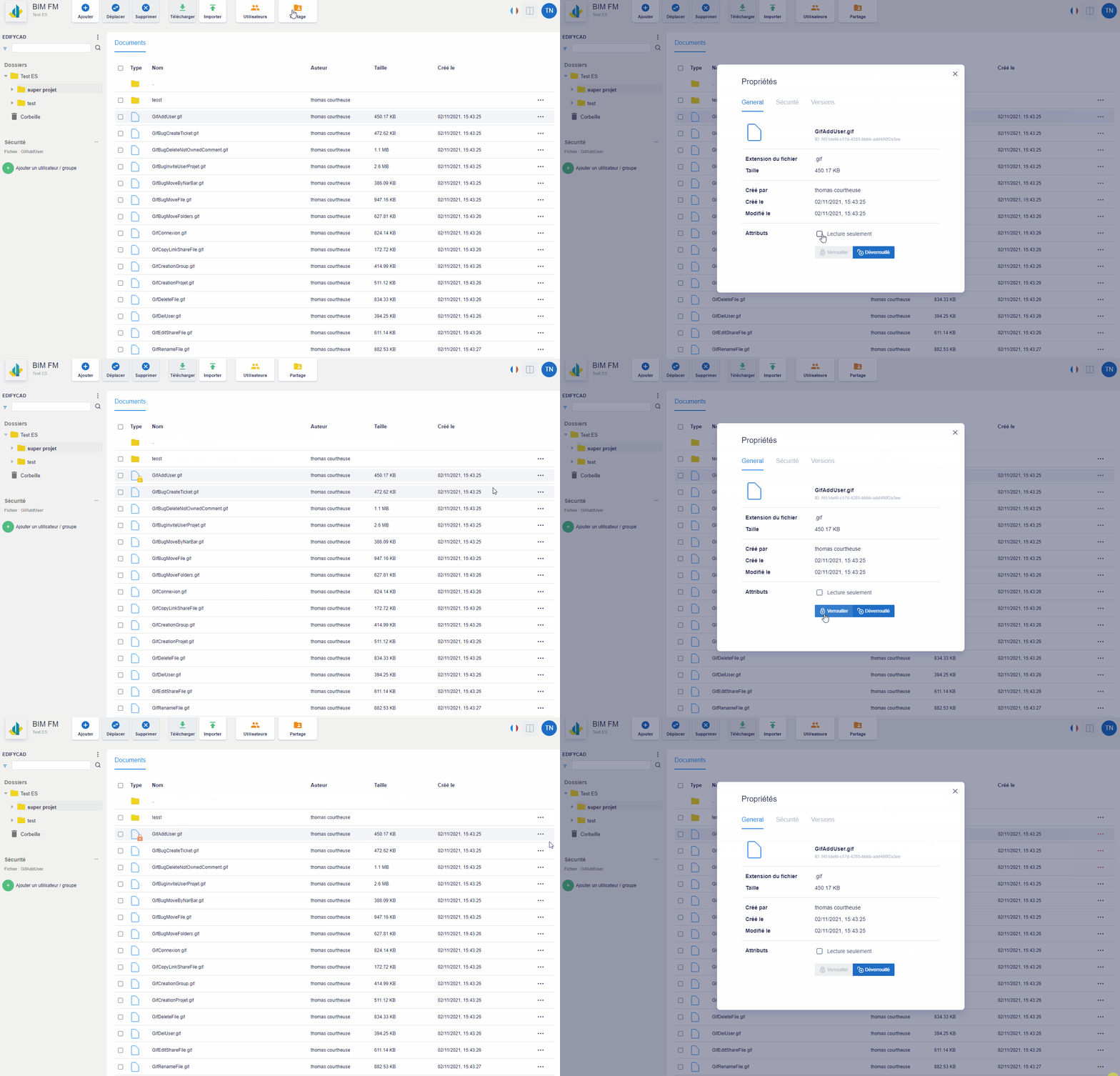
You will have several types of locking possible:
- Persistent lock:
A persistent lock is tied to a user, not a logged in session. A persistent lock remains in effect until another user unlocks the file.
The same user is authorized to make changes throughout the authenticated session.
An icon with a red padlock will then be visible on the file icon.
- Read-only lock:
The read-only lock is a special lock that prevents anyone from making changes to the file.
An icon with a yellow padlock will then be visible on the file icon.
NB: A file cannot be locked and read-only at the same time
In the case of a file locked by another user, you have the option of “force unlocking” it. You will then be the new owner of the file lock.
Attached is a summary table of the possible actions depending on the type of lock:
| Action | Locked | Readonly |
| Download a new version | Yes, if owner | No |
| Rename file | No | No |
| Move file | Yes | Yes |
| Delete file | No | No |