Via the action menu of a folder in the folder tree
- Hover your mouse over the folder where you want to import a file, a “…” icon will appear at the end of the line,
- Click on the “…” icon and a menu of actions will appear,
- Click on the “Import” action,
- Select the file to import

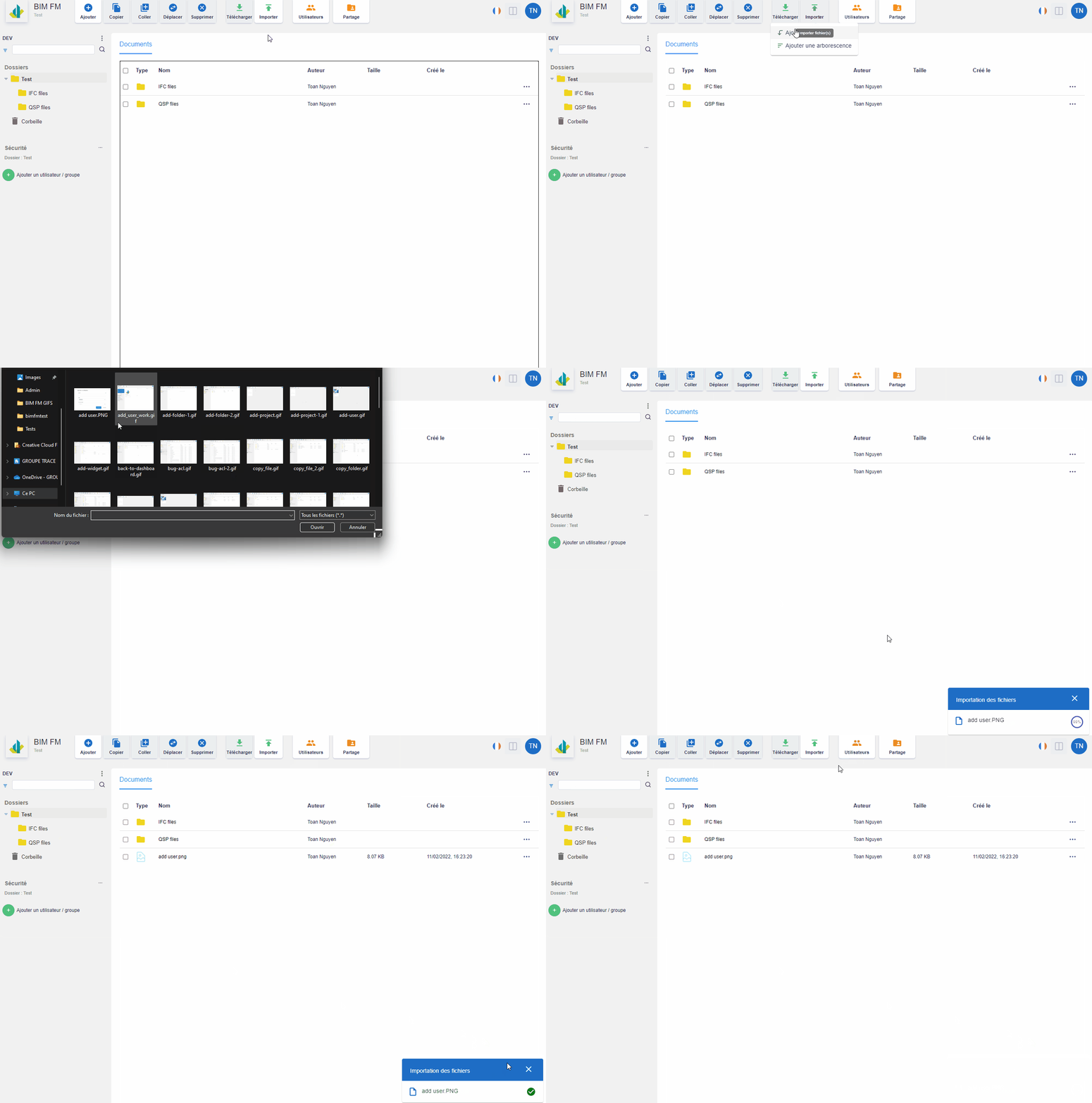
Via the “Import” button in the toolbar
- Select the folder in the folder tree where you want to import a file,
- The documents of the selected folder are displayed in the “Documents” tab (central part),
- Click on the “Import” button,
- Select the file to import
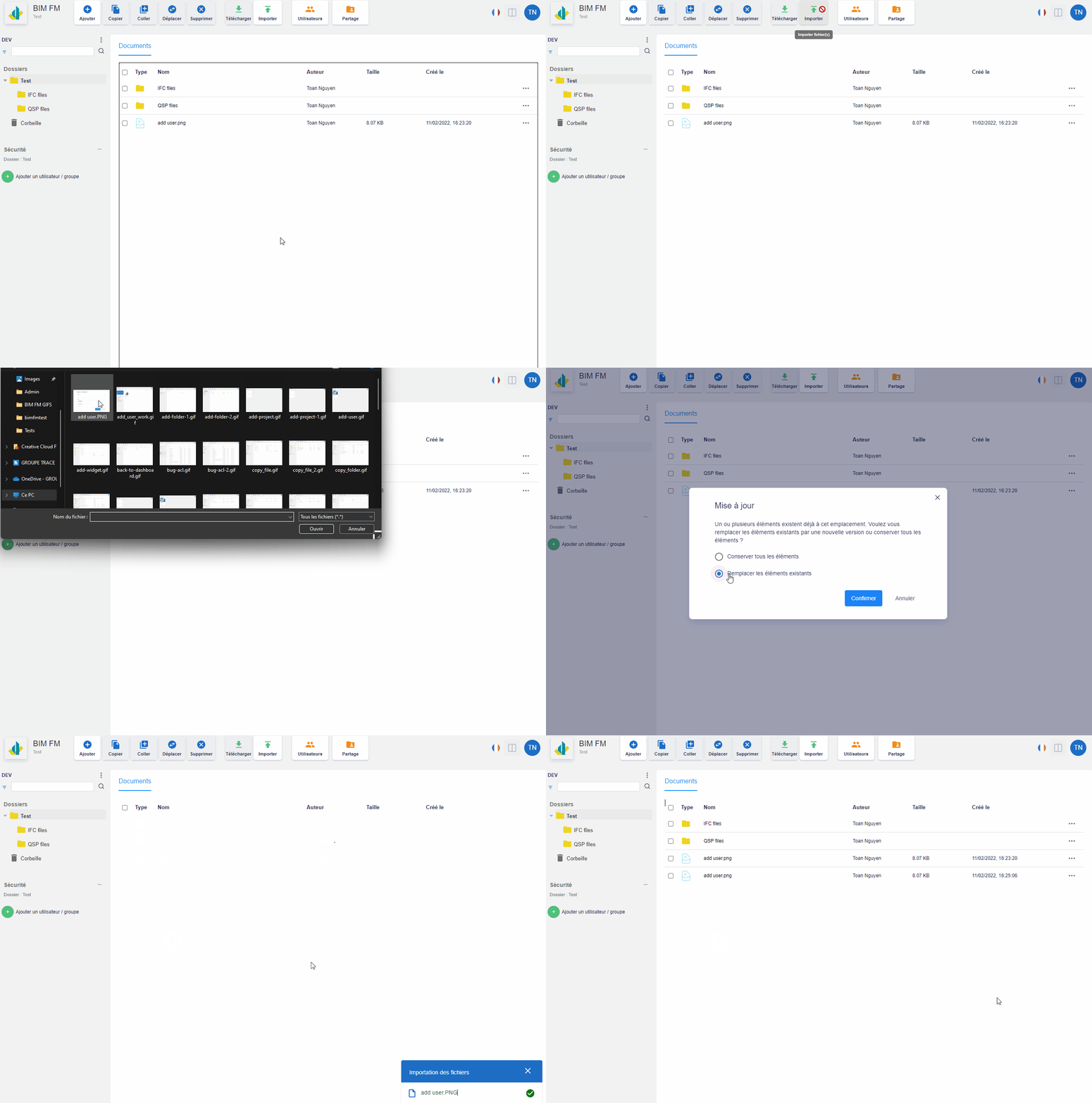
Import an existing file
If you import a file that already exists in a folder, then you have two options:
- Keep file(s): this will create a copy of the already existing file,
- Replace File(s): This will replace the contents of the existing file and add a version to the file